
Kiosk Mode is a simplified user interface that allows workers to punch in quickly and efficiently. Timesheets.com can be set up to operate as a kiosk when managers want to limit clock punches to one or more specific devices.
Starting a Kiosk
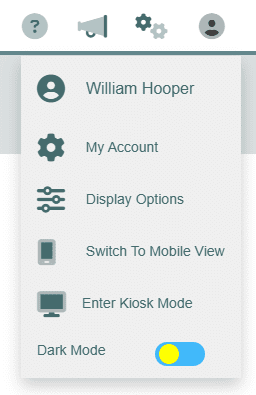
Kiosk Mode can be started by any admin or supervisor level user. To enter Kiosk Mode, make sure you’re on the device you want to use as a kiosk and log into your supervisor or admin level account. Click the round user icon at the top right corner of the screen and select Enter Kiosk Mode from the menu.
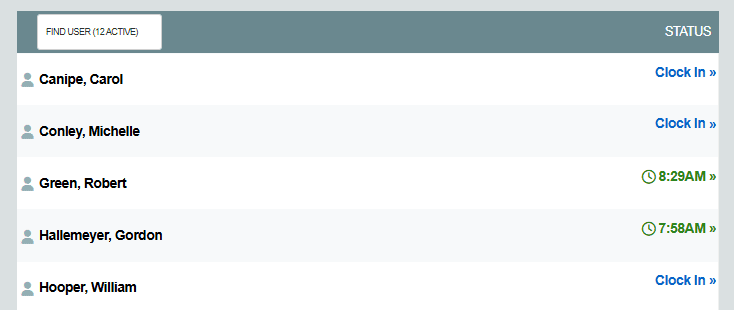
Once Kiosk Mode is enabled, the Kiosk Home Screen will display the appropriate user list along with corresponding links for each user to Clock In. The kiosk is now ready for use. When users punch in, the Clock In link is replaced with the user’s clock-in time and displays in green in similar fashion to the normal Dashboard display. If they user is clocked in for longer than 8 hours, the color turns red. After 24 hours the clock in time is replaced with the short message CLOCK OUT.
Kiosk Timeout Settings
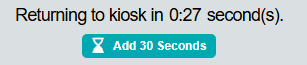
When workers use the kiosk, they have 15 seconds to complete their clock punch or the kiosk will return the user to the home screen. If 15 seconds isn’t enough time for your workers to complete the clock-out process, users can click the Add 30 Seconds button to add additional time to the timer.
The default kiosk timeout value of 15 seconds can also be adjusted in Company Settings. To change company wide kiosk settings, select the gears icon at the top right corner of the screen, then the Security tab, and finally select the option for Kiosk Settings. Kiosk Mode works with our IP lock, photo timestamp, and geolocation features.
Available timeout options are:
- 10 seconds
- 15 seconds (default amount)
- 30 seconds
- 10 minute
- 5 minutes
- Never
The kiosk timeout ensures the kiosk is always on the home screen and ready for use.
Kiosk Security Settings
The kiosk can verify user identities with their personal pin or their normal account’s password. The pin can include letters and numbers, and must be between 4 and 8 digits in length. Passwords must comply with standard Timesheets.com password strength requirements. The kiosk can also be set to require neither pin or password in situations where no security is required.
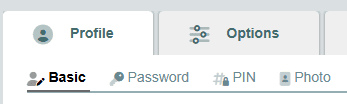
Kiosk pins are set in user settings on the Pin subpage under the Profile tab:
Preventing Login
When managers want to limit users to kiosk access only, they can disable login access in user profiles on the Basic subpage of the user’s Profile tab.
Exiting Kiosk Mode or Logging Out
Once enabled, Kiosk Mode is locked and can only be disabled by the manager who started it. Any user can log out of Timesheets.com, even if the account is in Kiosk Mode. Users should therefore be instructed not to log out of the system.