
Overtime Settings
To change an existing employee, open that employee’s settings and edit the overtime section on the Profile tab. A mass-update tool may be used when the same policy should be assigned to multiple existing employees.
- Only standard hourly worked time is included in overtime calculations. Salaried time and time-off categories do not count as hours worked for these calculations.
- Company defaults are configured in Company Settings > Hourly and apply to users created afterward. Changing the company default does not update existing employees.
To Changing a user’s settings
- From the Dashboard >Time & Expense tab, click the gear icon to the left of a user’s name. Select the Profile tab, Overtime Settings page.
- Select the overtime policy (see below for instructions).
- Confirm the employee’s workweek start and workday start.
- Save the settings.
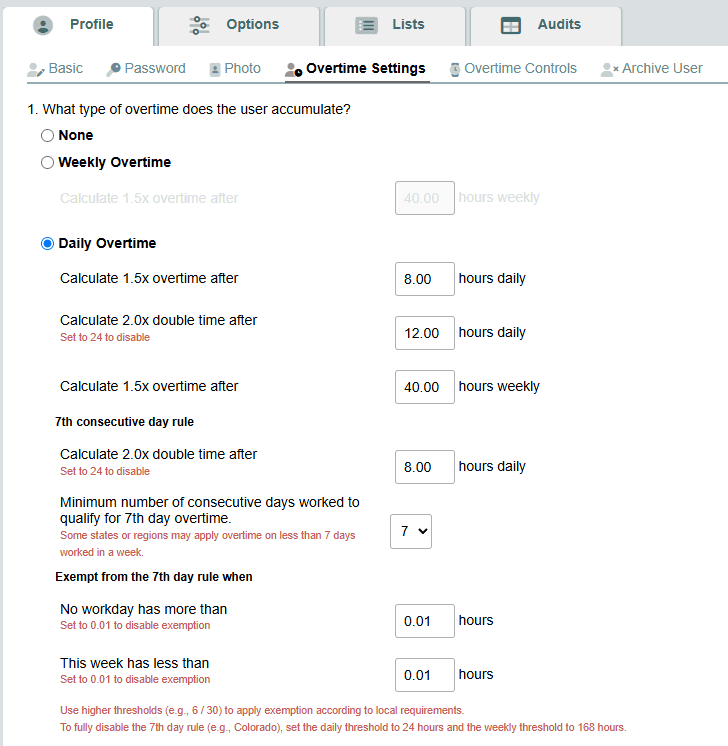
Timesheets.com provides three overtime policy types
| Policy | What it does | Common use |
|---|---|---|
| None | Does not classify worked hours as overtime or double time. | Workers who are not eligible for overtime in Timesheets.com, or organizations that calculate premiums outside the application. |
| Weekly Overtime | Classifies eligible hours above a weekly threshold as 1.5×. The default threshold is 40 hours. | Many U.S. employers whose rules require weekly, but not daily, overtime. |
| Daily Overtime | Applies daily 1.5× and 2.0× thresholds, a weekly 1.5× minimum, and optional consecutive-day rules. | California and other jurisdictions or policies that require daily or consecutive-day premiums. |
None
Select None if Timesheets.com should not calculate overtime for this user. All worked hours will remain regular time.
Weekly Overtime
Select Weekly Overtime if the user earns overtime only after reaching a weekly limit.
Calculate 1.5× overtime after
Enter the number of worked hours the user can have in a workweek before 1.5× overtime begins. The standard setting is 40.00 hours.
Example: With this field set to 40.00, a user who works 44 hours receives 40 regular hours and 4 overtime hours.
Daily Overtime
Select Daily Overtime if the user can earn overtime based on daily hours, weekly hours, or consecutive days worked. Complete each field described below.
Daily Overtime fields
Calculate 1.5× overtime after — hours daily
Enter the number of hours the user can work in one workday before 1.5× overtime begins.
Example: Enter 8.00 to pay 1.5× after 8 worked hours in a day.
Calculate 2.0× double time after — hours daily
Enter the number of hours the user can work in one workday before 2.0× double time begins.
Example: Enter 12.00 to pay 2.0× after 12 worked hours in a day.
Set this field to 24.00 to disable daily double time.
Calculate 1.5× overtime after — hours weekly
Enter the number of hours the user can work in one workweek before 1.5× overtime begins.
Example: Enter 40.00 to pay 1.5× after 40 worked hours in the week.
7th consecutive day rule
These fields appear only when Daily Overtime is selected.
Calculate 2.0× double time after — hours daily
Enter the number of hours worked on a qualifying consecutive day before the user’s time changes from 1.5× overtime to 2.0× double time.
Example: Enter 8.00 to pay the first 8 hours at 1.5× and later hours at 2.0×.
Set this field to 24.00 to disable only the double-time portion of the consecutive-day rule. The user may still receive 1.5× overtime on that day.
Minimum number of consecutive days worked to qualify for consecutive-day overtime
Select how many consecutive workdays the user must work before the consecutive-day premium applies.
- Select 7 for a standard seventh-day rule.
- Select a lower value only when the rules that apply to the user require overtime earlier in the week.
A workday counts when the employee records worked time. PTO and other time-off entries do not count as worked time by themselves.
Exempt from the 7th day rule when
The next two fields work together. The user is exempt from the consecutive-day premium only when both conditions are met.
No workday has more than — hours
Enter the maximum number of hours the user may work on any day while still qualifying for the exemption.
Example: Enter 6.00 when the exemption requires that no workday exceed 6 hours.
Set this field to 0.01 to disable this exemption.
This week has less than — hours
Enter the weekly-hours limit for the exemption.
Example: Enter 30.00 when the exemption applies only if the workweek has less than 30 hours.
Set this field to 0.01 to disable this exemption.
To disable the entire consecutive-day rule: Set No workday has more than to 24.00 and This week has less than to 168.00.
Work Week Delineator
When does this user’s work week start?
(24-hour work day and 7-day work week delineator)
Use this setting to define the start day and start time of the user’s work week. To calculate overtime correctly, each work day must have a defined start and end time—typically midnight to 11:59 PM—and each work week must have a defined start and end day, typically Sunday through Saturday.
If some staff members work overnight shifts, consider setting their start time to 12 PM. For employees who work standard daytime hours, the start time should usually be set to 12 AM.
For a detailed explanation of how this setting affects payroll calculations, refer to this article.