
This article covers common errors that may occur when importing data into QuickBooks Desktop using the Timesheets.com QuickBooks Desktop Importer.
If an import fails, locate the error message below and follow the recommended troubleshooting steps. If you cannot find your error, call support at (800) 770 4959.
Troubleshooting Index
- Blank error message
- Access to the path
C:\ProgramData\TimeSheets\MissingInfo\MissingInfo_Report.csvis denied - Billable rows require service item
- Error: Cannot create QBXMLRP2 COM component
- Error: Retrieving the COM class factory for component with CLSID… failed (80040154)
- Error: This application does not have permission to access this QuickBooks company file
- Error: This application has not accessed this QuickBooks company file before
- Exception from HRESULT: 0x80040300
- Input array is longer than the number of columns in this table
- Microsoft .NET Framework – Unhandled exception has occurred
- Not all data was imported successfully
- Object reference not set to an instance of an object
- One or more expense accounts are missing from your Chart of Accounts
- Payroll item must be assigned to employees before import
- Please close any open dialog box in QuickBooks
- QuickBooks already has a company file open
- QuickBooks found an error when parsing the provided XML text stream
- The Microsoft Jet database engine could not find the object
- The name “Unassigned” of the list element is already in use
- Warning: One or more users do not have an assigned employee number
- Warning: Timer data does not have an assigned payroll item
- Customer does not exist in QuickBooks
Blank error message
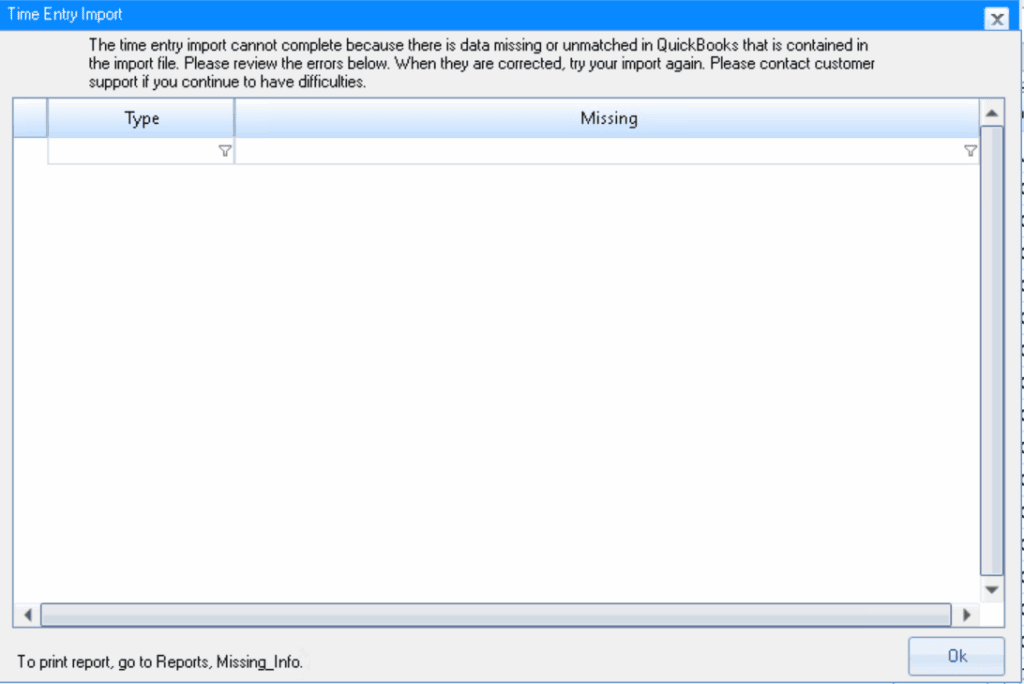
Sometimes the importer displays a blank error window without listing any missing items.
Resolution
This issue is most commonly caused by duplicate Employee IDs.
- Open the Application Log.
- Identify the employees with duplicate Employee IDs.
- Update the duplicate IDs in Timesheets.com.
- Download a new export.
- Import again.
Access to the path MissingInfo_Report.csv is denied
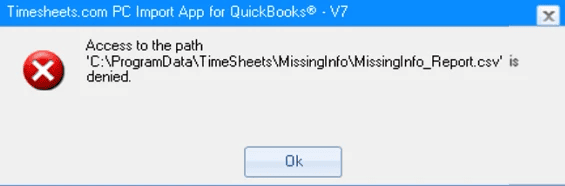
The importer cannot access the existing MissingInfo report.
Resolution
- Browse to
C:\ProgramData\TimeSheets\MissingInfo\- Delete MissingInfo_Report.csv
- Retry the import.
The importer automatically recreates this file during the next import.
Billable rows require service item
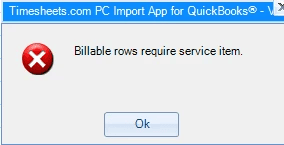
Billable Project Time requires a Service Item.
Resolution
- Open Importer → Settings
- Under Project Import
- Enable Use ACCOUNT CODE as Service Item
- Save
- Retry the import.
Error: Cannot create QBXMLRP2 COM component
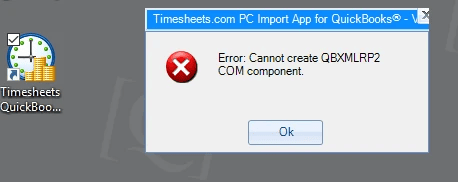
This usually indicates a missing or damaged installation.
Resolution
- Install or repair Microsoft .NET Framework 3.5
- Reinstall the QuickBooks Desktop Importer
- Retry the import.
Error: Retrieving the COM class factory… 80040154
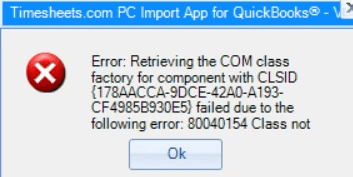
The required QuickBooks Foundation Classes (QBFC11) component is missing.
Resolution
Install QBFC11, then reopen the importer.
Error: This application does not have permission to access this QuickBooks company data file
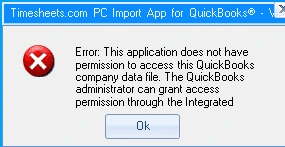
The importer has not been granted permission to access the company file.
Resolution
Open
Edit → Preferences → Integrated Applications → Company Preferences
Verify:
- QuickBooks Importer is checked
- Permissions match the Setup page
Error: This application has not accessed this company file before
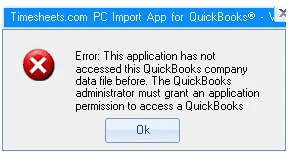
The QuickBooks Administrator must authorize the importer.
Resolution
- Sign into QuickBooks using the Administrator account.
- Launch the importer.
- Approve the authorization prompt.
- Retry the import.
Exception from HRESULT: 0x80040300
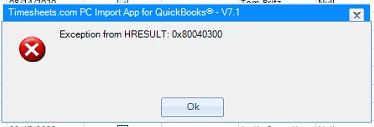
Usually caused by employee payroll configuration when importing Project Time.
Resolution
For each employee identified in the Application Log:
- Open Employee Settings.
- Check Use Time Data to Create Paychecks
- Save.
- Uncheck it.
- Save again.
- Confirm the Payroll Item column disappears from Weekly Timesheets.
- Export a fresh report.
Input array is longer than the number of columns in this table
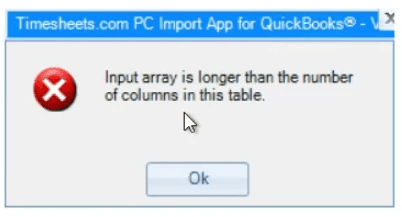
Usually indicates the CSV structure has changed.
Resolution
Check these items in order:
- Remove quotation marks (
") from work notes. - Download a new CSV.
- Verify no columns were added to the CSV.
- If the issue continues, contact Timesheets.com Support.
Microsoft .NET Framework – Unhandled exception has occurred
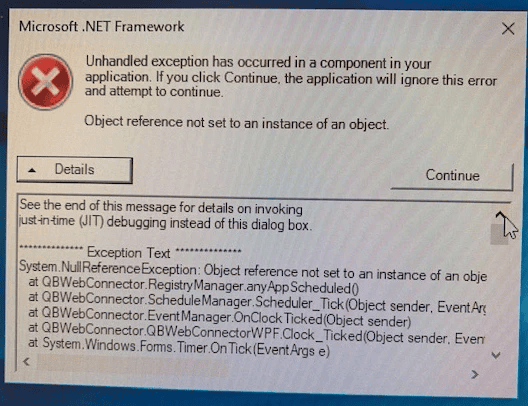
.NET Framework 3.5 is required.
Resolution
Install or repair Microsoft .NET Framework 3.5 specifically, restart Windows, and retry.
Not all data was imported successfully
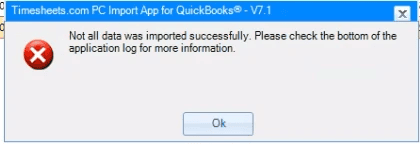
Review the Application Log for the exact cause.
Possible causes include:
- Billable Hourly Time
- Duplicate Employee IDs
- Weekly Timesheet window open
- Employees configured to create paychecks from time data
Each issue should be corrected before importing again.
Object reference not set to an instance of an object
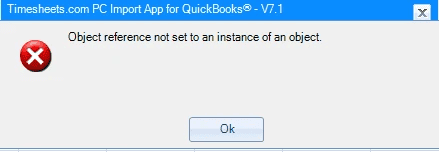
The selected import type doesn’t match the exported report.
Resolution
Verify:
- Payroll reports → Hourly Time
- Project reports → Project Time
Never open and re-save the CSV in Excel before importing.
One or more expense accounts are missing
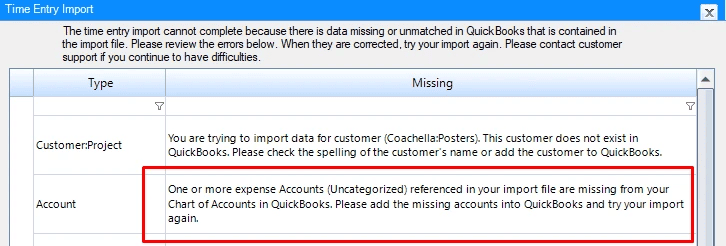
QuickBooks cannot find one or more Account Codes.
Resolution
Open
Lists → Chart of Accounts
Create the missing account or rename the Account Code so it matches QuickBooks exactly.
Payroll item must be assigned before import
Assign the missing Payroll Item shown in the error to the employee’s Payroll Info tab in QuickBooks.
Retry the import.
Please close any open dialog box in QuickBooks
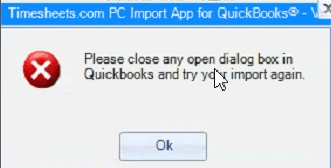
QuickBooks cannot process imports while dialog boxes remain open.
Resolution
Close:
- Preferences
- Employee windows
- Weekly Timesheet
- Customer windows
- Any popup dialogs
Retry the import.
QuickBooks already has a company file open
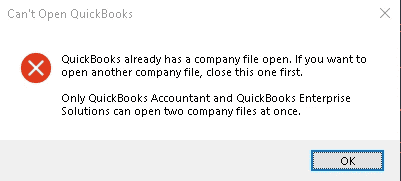
Usually caused by opening QuickBooks using Run as administrator.
Resolution
Close QuickBooks.
Open it normally (without Run as administrator).
Retry.
QuickBooks found an error when parsing the provided XML text stream
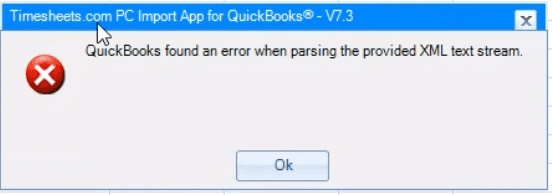
Unsupported characters exist within the exported data.
Resolution
Remove any unusual or special characters from work notes.
Download a fresh export.
Retry.
The Microsoft Jet database engine could not find the object
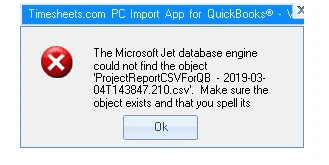
Usually caused by an incorrect filename.
Resolution
Rename the downloaded file to:
ProjectReportCSVForQB.csvIf necessary:
ProjectReport.csvAlternatively verify:
- no extra periods
- browser isn’t renaming duplicate downloads
- browser prompts where to save downloads
The name “Unassigned” of the list element is already in use
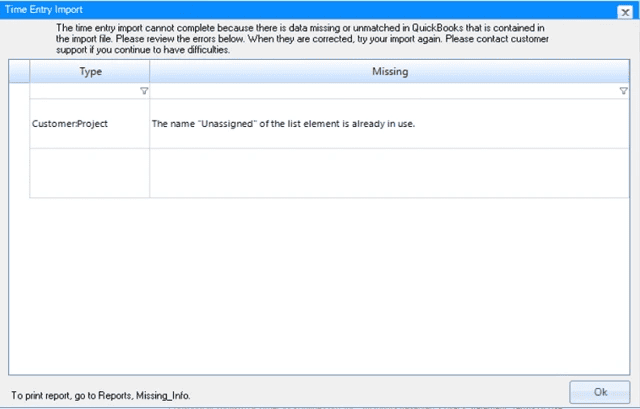
QuickBooks already reserves the name Unassigned.
Resolution
Rename any Customer or Project called Unassigned.
Account Codes may still use the name “Unassigned.”
Warning: One or more users do not have an assigned employee number
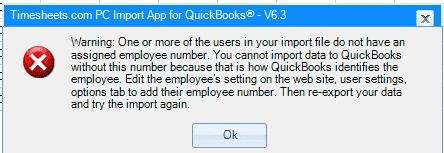
The Employee Number is missing or doesn’t match QuickBooks.
Resolution
Verify every employee has:
- an Employee Number
- the same Employee Number in QuickBooks
Download a new export.
Retry.
Warning: Timer data does not have an assigned payroll item
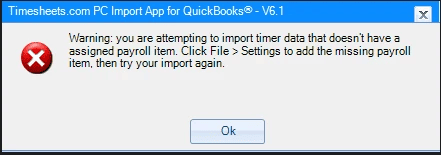
Payroll Items in the importer don’t match QuickBooks.
Resolution
First verify payroll mappings.
If using one configuration:
- Delete payroll mappings
- Paste them back in from QuickBooks
- Save
If using multiple configurations:
- Select the configuration
- Click Update
- Open Settings
- Click Save
Retry.
Customer does not exist in QuickBooks
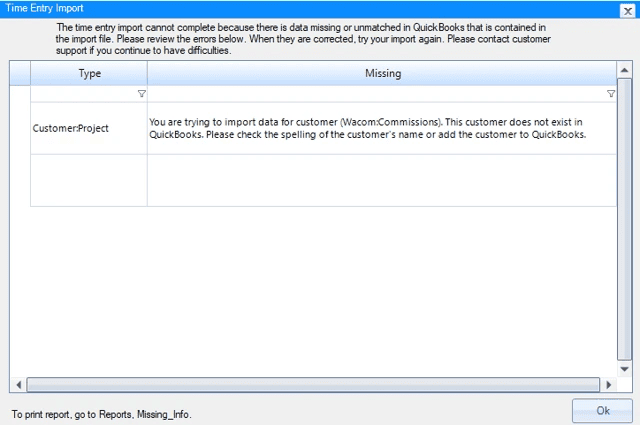
The customer referenced by the import file doesn’t exist.
Resolution
Option 1
Enable Create Customers in the importer.
Option 2
Create the customer manually in QuickBooks.
Customer names must match exactly.