
These are the most common reasons an export to QuickBooks Online might fail and their solutions. Customer Service can help if your problem isn’t solved using one of the solutions below. Contact us at 800 770-4959.
QuickBooks Online Simple Start Version Not Supported
QuickBooks Online Simple Start is a version of QuickBooks Online for small businesses and single users. While it is a version of QuickBooks Online, because Simple Start does not have a weekly timesheet it is not able to accept imports from Timesheets. When attempting to export time to a QuickBooks Online Simple Start account, you will get an error message that states:
“ERROR: Feature Not Supported Error”
Unfortunately, this as it is a limitation with Simple Start, however it is still possible to run a report for your hourly totals in Timesheets.com and then manually put those totals into your QuickBooks Online Simple Start account. See our Reports section of the Help Pages for more information on running reports for Hourly Time, Project Time, or Expenses.
Resubmitting Failed Exports
When line items fail to import, it usually has to do with a mismatch between item names. For example, if an employee’s name in QuickBooks Online has a middle initial but the name in Timesheets.com does not, a mismatch occurs causing the line item failure to import. The middle initial needs to be added to Timesheets.com or removed from QuickBooks Online. They need to match exactly before you retry your import.
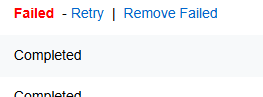
Imports that fail to complete display a red Failed status next to the appropriate line item on the Previous Exports page.
Since each line item is imported separately, a failure often means some of your data imported and some did not. Click the View icon to inspect the data and look for items that failed to import. Each line item will include an import confirmation or a reason for the failure. For instance, as seen here, this line item could not be imported when the Timesheets.com couldn’t match the employees name to a name in QuickBooks Online.

When correcting issues with failed QuickBooks Online exports, it is important to know how to properly resubmit the export so that data is transferred accurately and without duplications.
Option 1. Fixing the Problem By Updating Timesheets.com
If you choose to correct mismatched information within Timesheets.com, then the Retry function won’t work. In this case, you will need to remove the failed line items from the export, correct the mismatch errors in Timesheets.com, and then repeat the export process.
- On the Previous Exports page, click the Remove Failed link. This action removes all failed line items from the exported dataset. After clicking this link, the status of the export will change from Failed to Completed (because everything left in that dataset after failures are removed will have imported correctly). DO NOT DELETE THE COMPLETED DATASET FROM PREVIOUS EXPORTS! This is how Timesheets.com knows not to export the completed line items a second time.
- Visit the list items in Timesheets.com that need to be corrected and make the necessary changes so they match items QuickBooks Online.
- Once all the corrections have been made, retry your export with the same parameters. Note that items previously exported will not re-export as long as you didn’t delete the previously completed export.
Option 2. Fixing the Problem By Updating QuickBooks Online
If you correct any mismatched information (e.g. items, labels) within QuickBooks Online, then you may simply hit the retry button on the failed export.
- Login to your QuickBooks Online account.
- Location and fix the mismatched item names.
- Return to the Timesheets.com and visit the Previous Exports page.
- Click the Retry link on the failed export line item. If all mismatches are corrected, the export process will retry the failed items and mark the transaction complete. If a failure recurred, check the export results and repeat the procedure.
Common Export Errors
| Error Message | Explanation | Resolution |
|---|---|---|
| Error Code: 3003 | There is a list-item mismatch between QuickBooks Online and Timesheets.com | Check to verify that the Customer, Project, or Account Codes being used match the corresponding item in QuickBooks Online. |
| Error Code: 2010 Request has invalid or unsupported property | There are special characters (e.g. accent marks) in some or all of the records being exported that QuickBooks Online does not support | Remove any accent marks or other special characters from ANY of the records being exported. This includes list items (projects, account codes, etc) and work notes. |